A practical walkthrough
How to make AI photos of yourself
PublicSelf editorial · Published
To make AI photos of yourself, start with a clear reference photo, choose the clothes you want to wear, then decide the pose, setting and framing. Review the first image against your reference before you make more. In PublicSelf, your saved identity supplies the person, your Look supplies the outfit, and Shoot supplies the photographic direction.
Begin with a picture that is easy to judge: a relaxed standing portrait, a quiet background and even light. Once that works, try a different place or a more expressive pose. A dramatic image can be exciting and still get your face or clothes wrong.
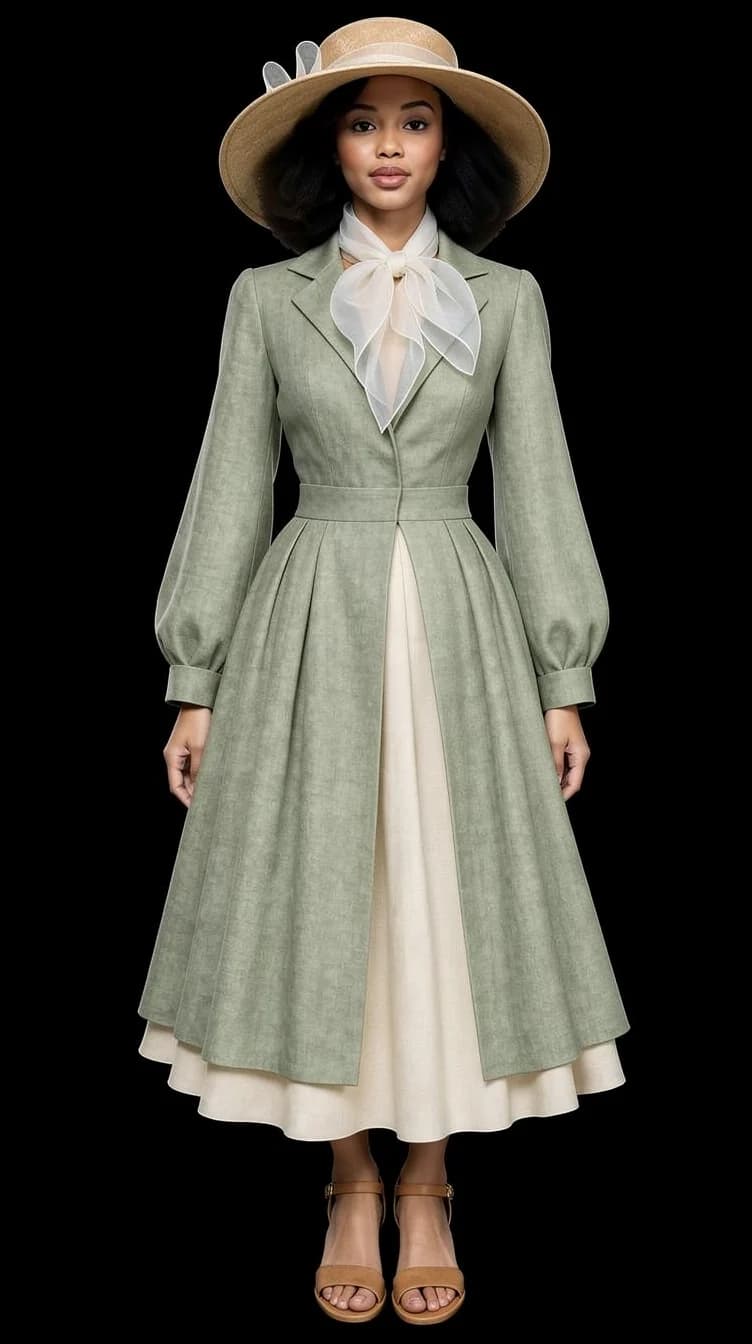
1. Choose references that describe you clearly
One clear photo is enough to create an identity: either a full-body photo, head to toe in even light, or a front-facing face photo with your eyes visible. If you add only one, it is used for both your face and your body. Adding the second usually gives a closer likeness, so upload both when you have them.
Choose photos that show how you want to appear now, including your current hair and facial hair. Avoid heavy beauty filters, extreme camera angles and deep shadows across the face. A close-up from years ago and a recent full-length photo can disagree about your hair or build; settle that before you spend time on styling. Upload only photos you have permission to use, of people you are entitled to represent.
2. Build a Look around the picture's purpose
A profile portrait and a full-length fashion photo ask different things of an outfit. In a small profile image you will mostly see the collar, neckline and the contrast around your face. In a full-length image the trousers or skirt, the shoes and the overall silhouette matter too.
Pick a curated Look, describe an outfit in your own words, or upload photos of pieces you own and use them in your Look. Adding another piece to the same slot replaces the first one. Check the selected garments before you generate: if a jacket or a pair of shoes is essential, make sure it is actually part of the Look. The finished picture is a style visualization; it does not confirm size, fit or fabric.
3. Direct one photograph
In Shoot, choose a pose, an expression, the camera framing and the scene and light so that they work together. Framing options include Close-up, Waist Up, Full-body and Environment. A standing pose at eye level with a quiet background is a simple first test. For full-body, make sure there is room above the hair and below the shoes.
Choose the image format before you generate: Landscape (16:9), Portrait (9:16) or Square (1:1). If you prefer writing, Describe mode lets you type the whole shot. Name visible things: “relaxed standing portrait, soft window light, plain grey background, waist-up” gives clearer direction than “perfect, stunning, premium”. You can try stronger light and unusual places once you have a useful baseline.
The price is shown on the Generate button before you tap. A series makes several pictures, so it costs more than a single image.
4. Review face, clothes and composition separately
Compare the face with your reference first: eyes, face shape, hairline and any defining features. A polished portrait of someone who looks different does not meet the brief.
Then inspect the outfit: lapels, neckline, buttons, sleeves, layers and shoes. Look at visible hands and feet at full size. Finally, judge the picture as a composition. Does the crop show what matters? Does the background suit where the image will be used? Has an object appeared that you did not ask for?
When a picture misses, name the specific problem before you try again. If the face is wrong, go back to the identity photos. If the crop cuts off the shoes, change the framing. If the outfit changed, check the selected Look. Changing everything at once makes it hard to tell what helped.
- Face matches the reference: eyes, face shape, hairline.
- Every garment you chose is there and looks right.
- Hands, feet and any held object make sense at full size.
- The crop and background suit where the image will appear.
5. Make useful variations and keep the ones you like
Reuse the same identity and Look for related pictures and change one photographic choice at a time: a tighter crop, a different expression or a second background. Series mode can make several connected frames from one concept. Review each new result on its own; references guide the image but do not guarantee an exact match.
Tap the heart on photos you want to keep and download the ones you will use. Photos you have not saved are deleted after a while. Prepare the final crop for its destination after checking the original: a face that reads well in a large image can be hard to recognise in a small round profile photo.
Before you share your AI photo
- You compared the face with your own reference photo.
- The outfit is the one you chose, with no surprise garments.
- Hands, feet and edges look right at full size.
- You kept the original with the heart and downloaded the file you need.
- The image is labelled honestly if it shows a place or event that never happened.
Questions about making AI photos of yourself
Can I make an AI photo of myself from one selfie?
Yes, one clear photo is enough to create an identity in PublicSelf, either a full-body photo or a front-facing face photo. It is then used for both face and body. Adding the second photo usually gives a closer likeness, especially for full-length pictures.
Will every image look exactly like me?
No generator can promise that. Likeness can vary from one result to the next. Compare each image with your reference photos and keep the ones that represent you accurately enough for the purpose.
Do I have to write a prompt?
No. You can choose a Look and set the pose, expression, framing, scene and light with controls. If you like writing, Describe mode lets you type the complete shot instead.
Can I recreate an exact photograph I already have?
This workflow creates a new photograph from references and direction. Composition, clothing details and background elements can all change, so it is not a way to edit one existing photo pixel for pixel.
What should I try next?
Start creating with the AI photo generator of yourself. For outfit ideas, open the AI outfit visualizer. For a small profile picture, read the personal photo avatar guide, and for ready-made briefs, read AI photoshoot prompts.