Length and outline
Compare a buzz cut or short crop with shoulder-length waves or long straight hair. Look at how the silhouette frames your face.
Hair, colour & character
Would you prefer a short crop, longer waves or a lighter colour? PublicSelf lets you explore hair and grooming with your own identity photos. Choose a preset in Customize Head & Body, generate a preview and decide whether to use it in your next photoshoot.
Examples
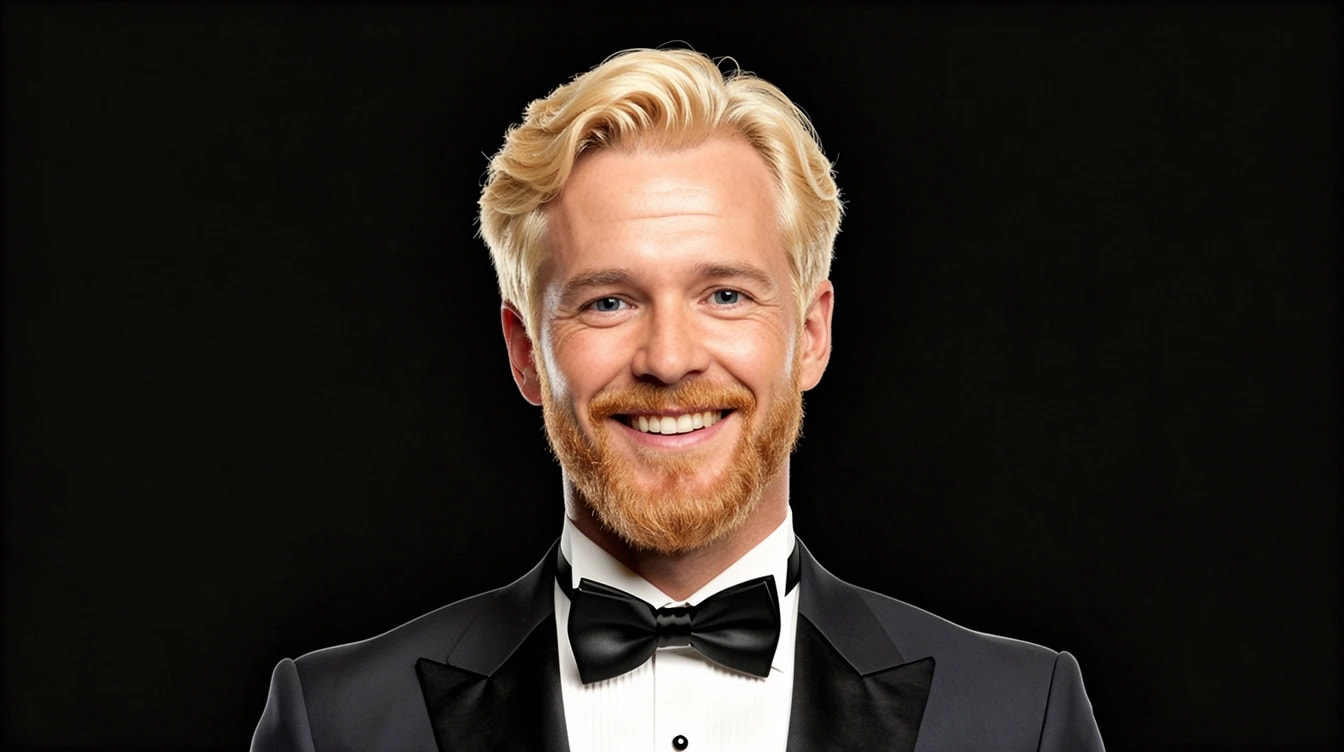
Existing results from PublicSelf’s customer generation pipeline, using a synthetic demo identity. The middle example overshot its colour request; the last shows a second attempt. These are examples of variation, not a guarantee of an exact match.

The demo avatar before these colour experiments. Keep a starting image beside each preview so changes to the face are easier to spot.
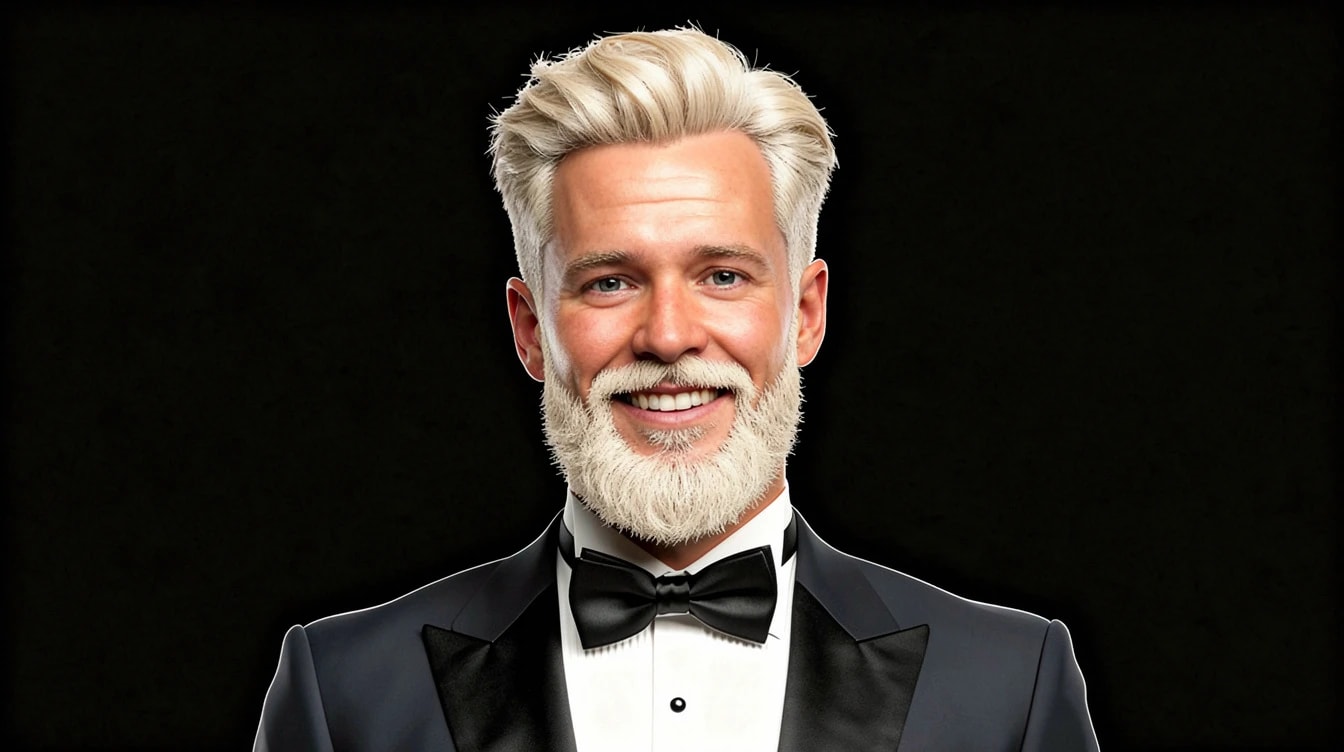
A light ash-blond hair and beard request produced almost white hair and a fuller pale beard. This is why the preview needs checking before applying it.
The blonde preset with a matching-beard request produced warmer hair and a ginger beard. The beard did not exactly match the head hair.
Ideas to compare
Change one thing at a time. A new cut and a new colour answer different questions.
Compare a buzz cut or short crop with shoulder-length waves or long straight hair. Look at how the silhouette frames your face.
Try curls, an afro, a side part, slicked-back hair, a ponytail or a bun. These are available grooming presets, not predictions of how your own hair will behave.
Explore brown, blonde, platinum, red, auburn, grey or salt-and-pepper. Keep the cut steady when judging colour against your skin and eyebrows.
How it works
The link keeps the existing minimal-studio preset through signup. Desktop opens its Look selection; on a phone, choose a Look in the catalogue. Open your identity to explore the hair controls.
01
Create an account and add a clear face photo and a body reference. Use an unobstructed face so you can judge the result.
02
Choose a hairstyle and colour in the grooming controls. Generate the head preview, compare it with your source and apply only a version you want to use.
03
Return to the minimal-studio flow, choose or create a Look and shoot. The applied identity preview carries into later generations until you reset or replace it.
In the studio
Hairline, texture, shade and facial likeness can vary. A generated preview cannot tell you whether a haircut or colour is achievable with your natural hair. Compare the face and eyebrows as well as the hair; ask a hairdresser about a real change.
Short and long styles, curls and tied-back options are available in the identity grooming panel.
Choose a colour separately from the style. The original hair can still influence a result, so inspect the preview rather than assuming an exact shade.
Where available for the identity, compare beard and moustache styles and colours too. Changing both at once can make the comparison harder to judge.
Yes. Add your own identity photos, then use Customize Head & Body to preview hair styles and colours. The result is generated from those references; it is not a live camera filter.
The grooming panel includes short cuts, long straight hair, shoulder-length waves, curls, an afro, a ponytail and a bun. Pick a direction for your identity rather than treating the examples on this page as the whole catalogue.
No. Likeness, hairlines, colour and texture can shift. Use it for ideas and compare with your reference photos. A stylist can assess what works with your actual hair.
An applied grooming preview becomes the face reference for later generations of that identity. Reset or replace it when you want to return to the original hair.
New accounts receive 10 free credits. Generation uses credits; check the displayed price before creating a grooming preview or a photo. Browsing the examples does not generate an image.
Try it yourself
Open the minimal-studio preset, then Customize Head & Body to choose the hair. Your preset selection is kept through signup. Download results you want to keep, or heart them in the studio.