A small visualization experiment
Create photos of yourself for a vision board
PublicSelf editorial · Published
A vision board can use pictures of places, activities and situations you want to explore. Personal images add another question: what does this scene feel like when you can recognize yourself in it?
PublicSelf creates individual images for a board. This guide explains how to choose those images, download them and arrange them in a separate collage, document or physical board.
Read the guide ↓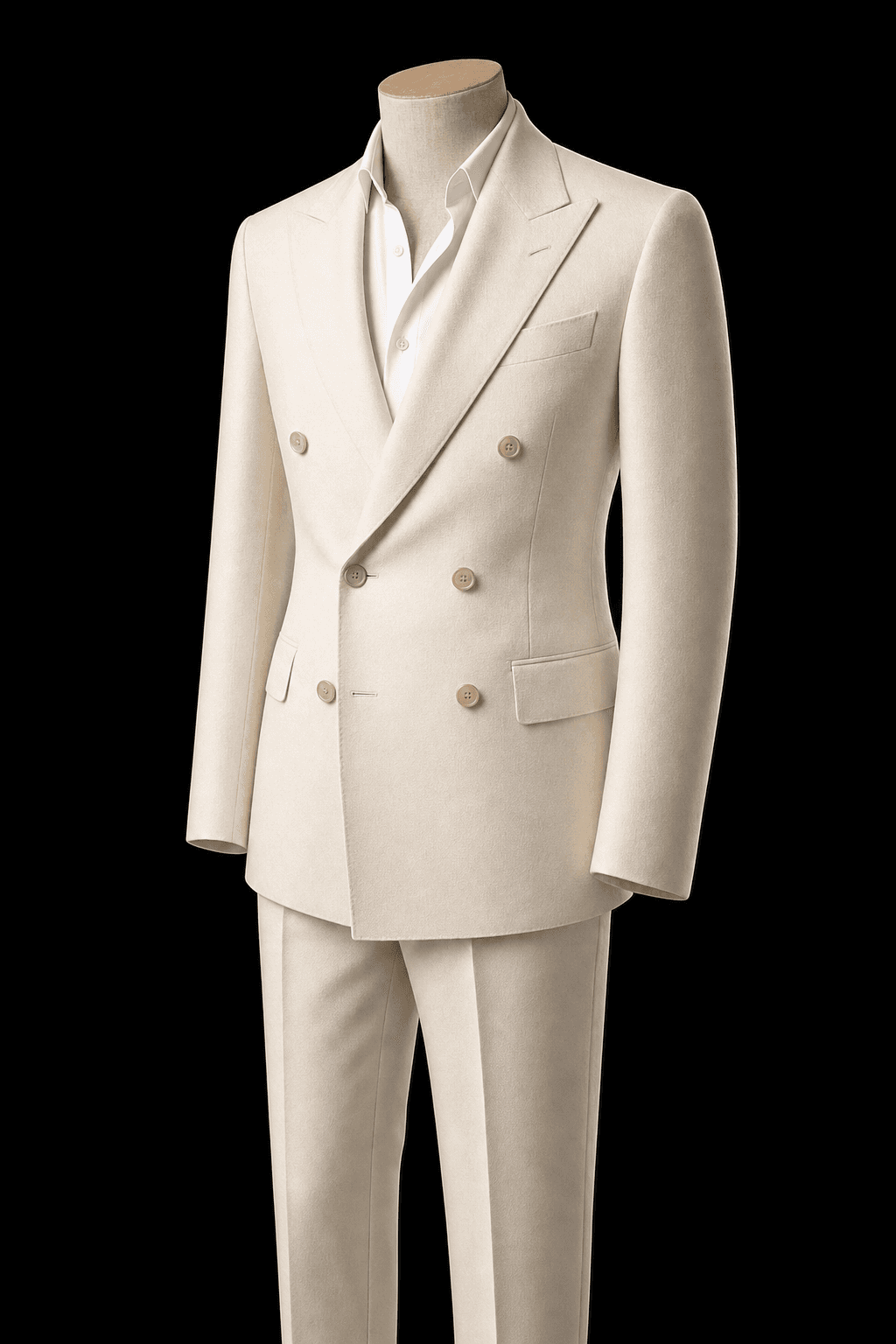
Choose a scene you can actually describe
Replace a broad word such as “success” with one visible moment. It might be speaking in a workshop, sitting in a calmer workspace or arriving somewhere you want to visit. Decide which parts of the picture matter before choosing a glamorous setting.
Keep the scene useful enough to respond to. You can enjoy an ambitious fantasy, but a picture alone does not make the event happen. If the image feels empty, narrow the scene until you can name a concrete action associated with it.
| Broad idea | A more specific picture | A possible next action |
|---|---|---|
| More visible | You presenting an idea in a small professional setting. | Prepare a short talk or approach an event organizer. |
| A calmer working life | You in a workspace with fewer distractions. | Change one part of your current working setup. |
| More adventure | You dressed for a destination you want to explore. | Research the journey and set a realistic plan. |
| A style you want to try | You wearing a different outfit in a familiar setting. | Compare what you like before making a purchase. |
Build the picture from personal references
Have a clear face close-up and a head-to-toe photo ready. Start with a curated Look, then adjust the scene, clothing, light, expression and pose. Review the image for recognizable features rather than accepting the first attractive result.
These are imagined scenes. Label the AI origin if you share them where someone could mistake them for actual experiences. Use your own likeness or images you are authorized to use, and avoid presenting a fictional scene as proof of an event.
The person
Compare your current face, hair and usual features with the result. Keep the pictures that feel recognizable.
The setting
Choose a place that adds meaning to the goal. Luxury props are optional; the scene should answer your question.
The direction
A pose or expression can change the mood. Test a small variation instead of changing every choice at once.
Assemble a small board around images and actions
Download a few selected images. Arrange them in a collage app, a document, a slide or a printed board. Add a short label beside each image describing the scene and one action you can take. PublicSelf does not supply a collage editor through this workflow.
The sample below is a teaching layout using different generated style examples. It does not show one person’s complete board. Your own board can use a consistent personal identity and whatever number of pictures remains useful to you.
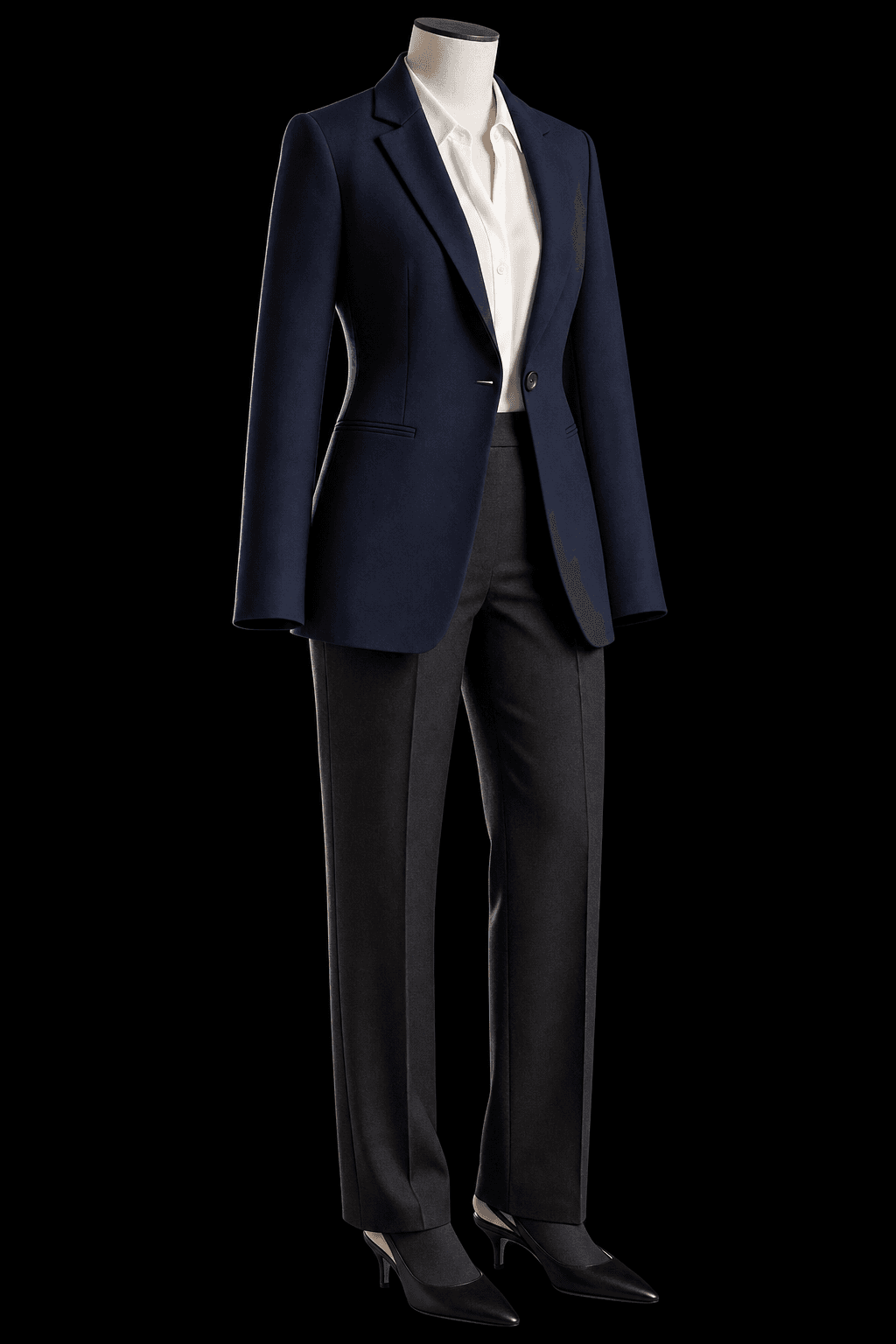
A more visible professional role
Prepare a short presentation.
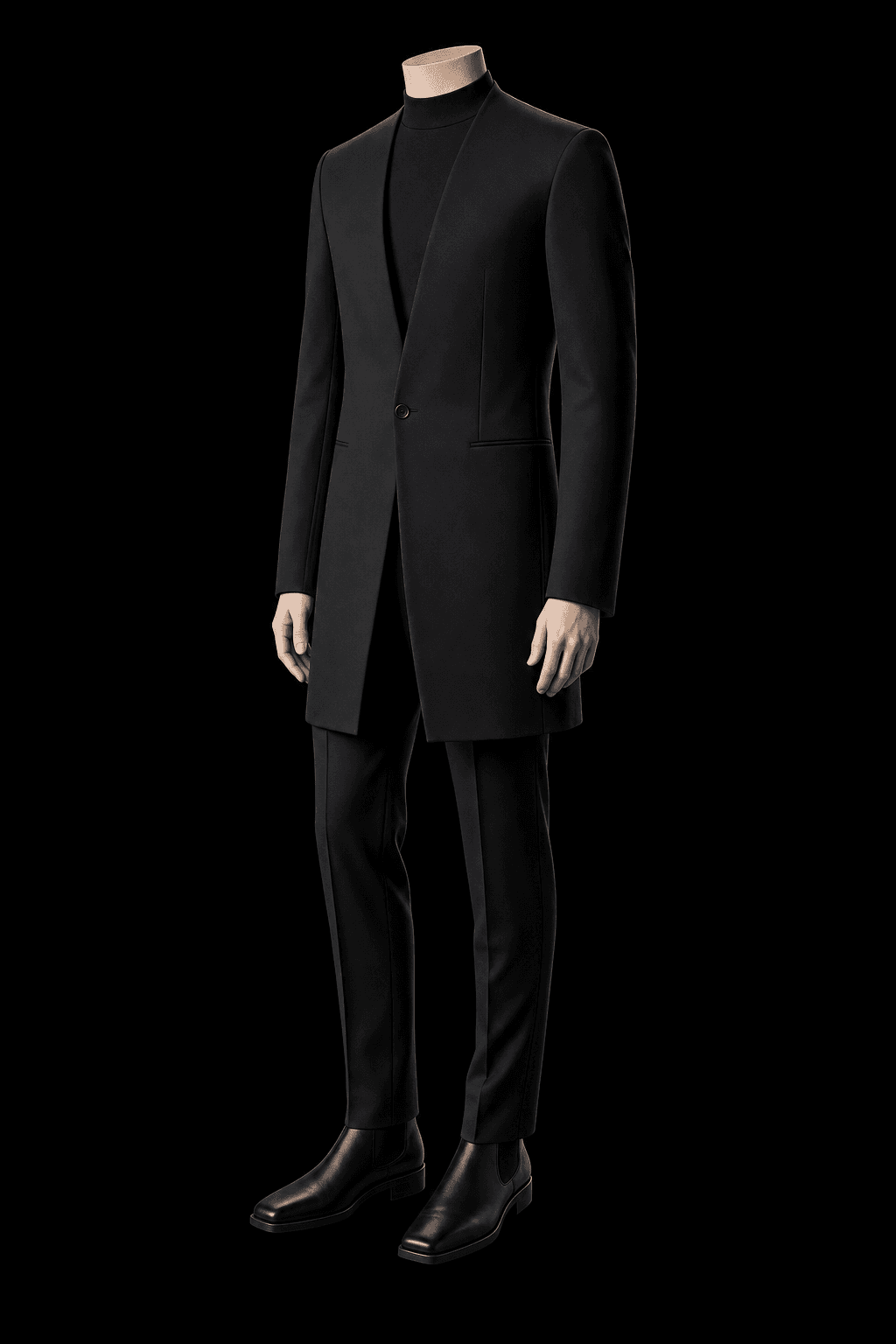
A different creative direction
Write a small shoot brief.
An outfit for a place you want to explore
Research one practical next step.
Review what the picture helps you notice
Ask what you actually like about the scene: the activity, the clothes, the room, the posture or the feeling of being seen. That answer can be more useful than the overall aesthetic. Replace a picture when it stops helping you think clearly.
Keep the image connected to present choices. Write down a next step, review it after taking action and let the board change. This is an image-making and reflection workflow; it is not a prediction, a guarantee of motivation or proof of the law of attraction.
- Can I name the specific scene?
- Do I recognize myself in the result?
- What part of the image matters most to me?
- What can I do without waiting for the imagined future?
- Should I keep, change or remove this picture?
Keep the images and know the generation cost
PublicSelf starts with 10 free credits. A picture costs 2 credits and the premium engine 9. Check the total before generating a Shot or Set. A smaller selection helps you compare direction before spending credits on many variations.
Download selected images or heart them in the studio. Unsaved generations are cleared after a couple of days. Keep a copy of your final board wherever you plan to use it; downloading individual images does not automatically assemble or publish a board.
A board image is useful when…
- It represents a specific scene.
- You recognize yourself.
- The imagined nature is clear.
- It has a short label and a possible next action.
- You have saved the image.
- You can change or remove it when it stops serving you.
Questions about choosing your photos
Does PublicSelf make a complete vision-board collage?
This workflow creates individual personal images. Download them and arrange the board in a separate collage tool, document or physical layout.
Is a future-self image the same as an age-progression photo?
Here it means an imagined role, setting or style using your current reference identity. This guide is not about predicting how your face will age.
Will a vision board make the pictured outcome happen?
A generated image is not a prediction or a guarantee. Use it to examine what you want and connect it with decisions and actions you can take now.
Can I use existing photographs instead?
Yes. Your board can combine your own photographs, authorized images and clearly labeled AI scenes. Generate only when a new image adds something useful.