The portrait workshop
Studio portrait backgrounds that leave room for you
PublicSelf editorial · Published
A quiet background makes the person and outfit easier to read. Choose it for where the photograph will be used: a small profile circle, a website with text, a media kit or a set of related posts.
Start with a clean scene before adding a location. The diagram lets you compare background contrast around a simple silhouette; it does not remove the background from a photograph.
Read the guide ↓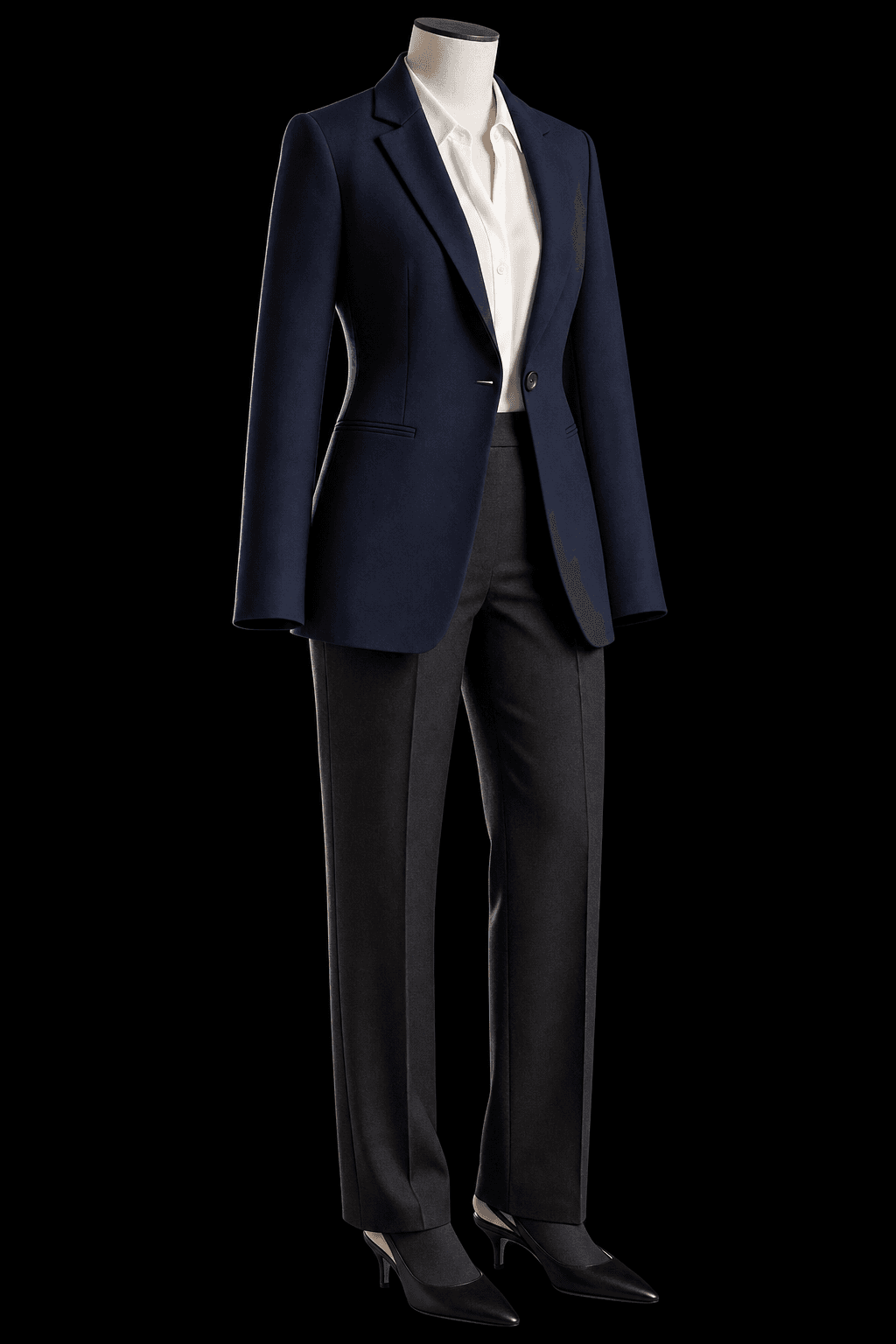
Choose the background with the outfit
Dark, light and neutral backgrounds are starting points rather than quality levels. A dark jacket can disappear into black. A pale shirt can lose its outline against a bright white scene. Choose enough separation to keep the face, hair and shoulders readable.
Try the three backgrounds in the diagram. Then assess an actual output at the size you plan to use. Thin hair, glasses, light fabric and dark shoulders deserve a closer look because small edge errors can become obvious when the image is placed on a page.
Background
Plan for profiles, layouts and a series
For a profile circle, leave some space above the hair and around the shoulders. For a website, consider a wider frame with quiet space for copy. For several posts, keep the backdrop and light related so that the images feel like one direction.
A real location can be useful when it contributes to the story. It also adds things to inspect: lines behind the head, reflections, perspective and objects near the body. A clean studio setting is a practical baseline when the image needs to work in several places.
| Use | Starting background | Review |
|---|---|---|
| Profile image | Quiet dark, grey or light studio | Face readability in a small circle |
| Website or media kit | A simple scene with negative space | Text placement and shoulder separation |
| Outfit comparison | The same neutral scene | Clothing colour and complete silhouette |
| Related social posts | A consistent background and light | Continuity without identical poses |
A plain background and a transparent file solve different jobs
A black, grey or white background is still part of the image. It does not become transparent when you save it as PNG. A transparent cutout needs a real alpha channel and clean edges around hair, glasses and clothing.
Choose a neutral studio background here when you want a reusable portrait with a deliberate setting. If you need a cutout, verify a separate removal and export workflow, then place the downloaded file over both light and dark colours. This guide does not promise a background-removal tool or transparent output from a regular Shoot.
- Inspect hair and clothing edges against the intended destination.
- Check perspective and shadows when a location is involved.
- Test an actual downloaded file before calling it transparent.
Try this direction in PublicSelf
Begin with a saved identity and a Look you are happy to use. Make a baseline Shot with a simple background and readable light, then change one photographic choice. Keep the baseline beside the new output so that you can see the effect of your instruction.
The studio exposes camera view, height and framing separately from pose, expression, background and lighting. These are directions for a generated image, not measurements from a physical camera. A lens label describes a photographic feeling; it does not establish how a real lens was used.
Before you keep the photograph
- Compare the face and hair with your reference photos.
- Inspect the eyes, hands, clothing edges and background at full size.
- Check the crop at its intended profile, website or post size.
- Download useful files or heart them before unsaved images are cleared.
Questions about choosing your photos
Does the diagram generate a photo?
No. It is an interactive explanation of a photographic choice. Open the studio to apply your direction to your own identity and Look. Generating an image uses the credits shown there.
How much does a first image cost?
A free account starts with 10 credits. A picture costs 2 credits and the premium engine 9. Review the selected tier and the total for a Shot or Set before generating. A credit allowance is not a promise of a particular number of usable results.
Can I keep my identity and outfit while changing the photograph?
Your saved identity and Look provide a reusable starting point. Change one shoot choice at a time and inspect the whole result. Likeness, fabric details and composition can vary between generated images.
Sources and further reading
- Nikon — Take Better Portraits
Background reading about real photography. The PublicSelf workflow and diagrams are our own editorial material.